Shopping Cart (0)
Your cart is empty.

 English (USD $)
 Minecraft Hosting
 VPS Hosting
 Ryzen VPS Hosting
 FiveM Hosting
Set up schedule
Overview
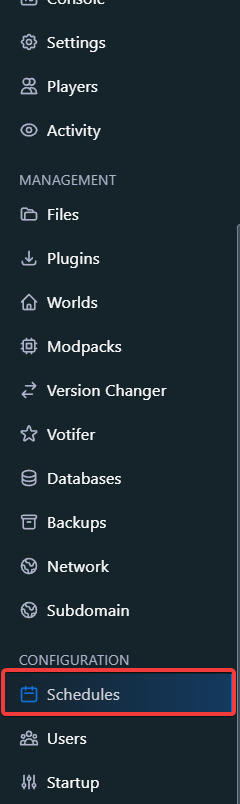
- 1. Navigate to Schedules
- Log in to the game panel.
- Select the server you want to configure a schedule for.
- Click "Schedules" in the menu on the left under "Configuration".
- 2. Create a New Schedule
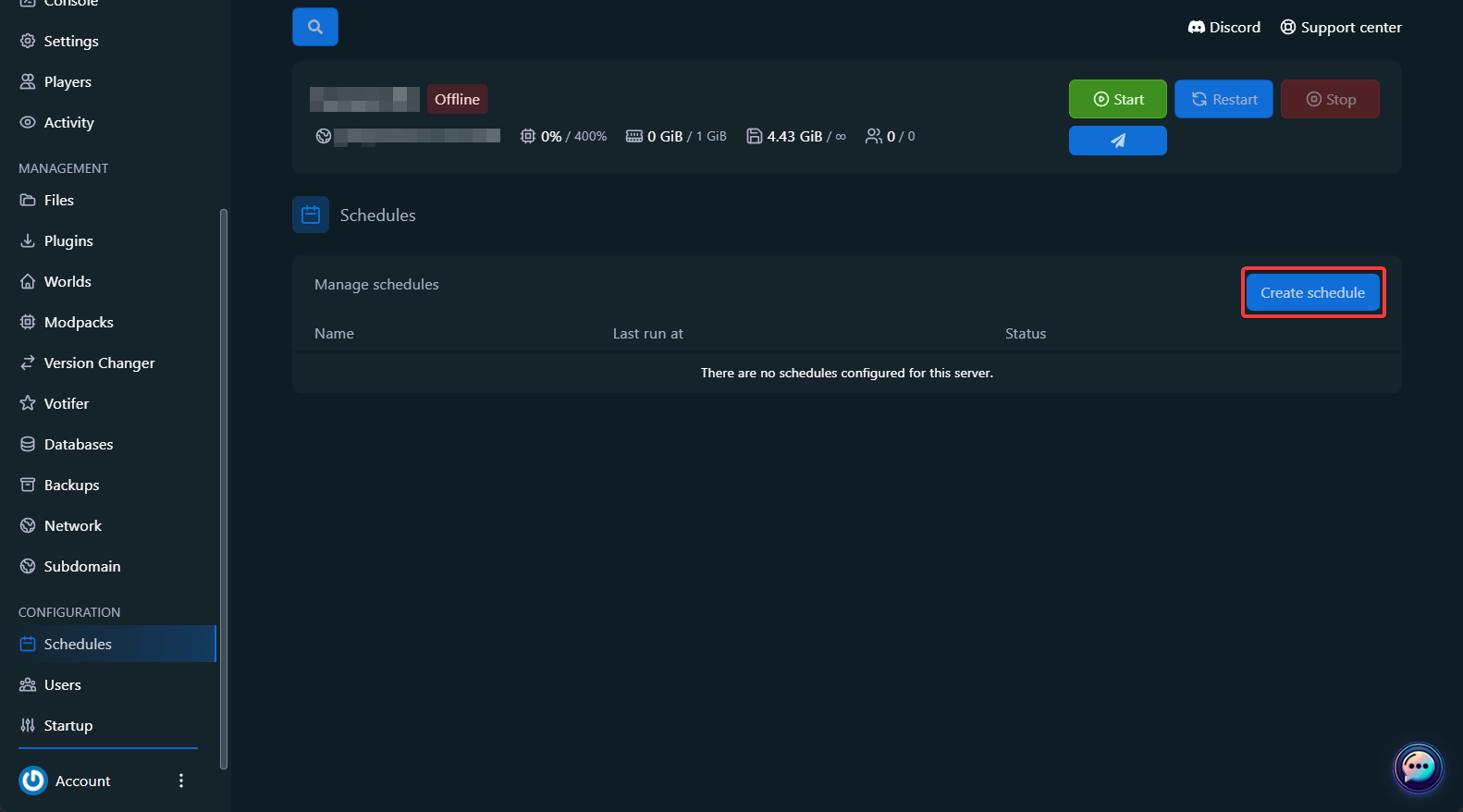
- Click "Create Schedule".
- Schedule Name: Give the schedule a recognizable name, e.g. “Automatic Restart”.
- Minute: The minute of execution, e.g. */5 for every 5 minutes.
- Hour: The hours of execution, e.g. 0,6,12,18 (at 00:00, 06:00, 12:00, and 18:00).
- Day of Month, Month, Day of Week: Use * to run every day/month/weekday.
- Only When Server is Online: Enable if the schedule should only run when the server is online.
- Schedule Enabled: Enable this option to activate the schedule.
- 3. Add Tasks
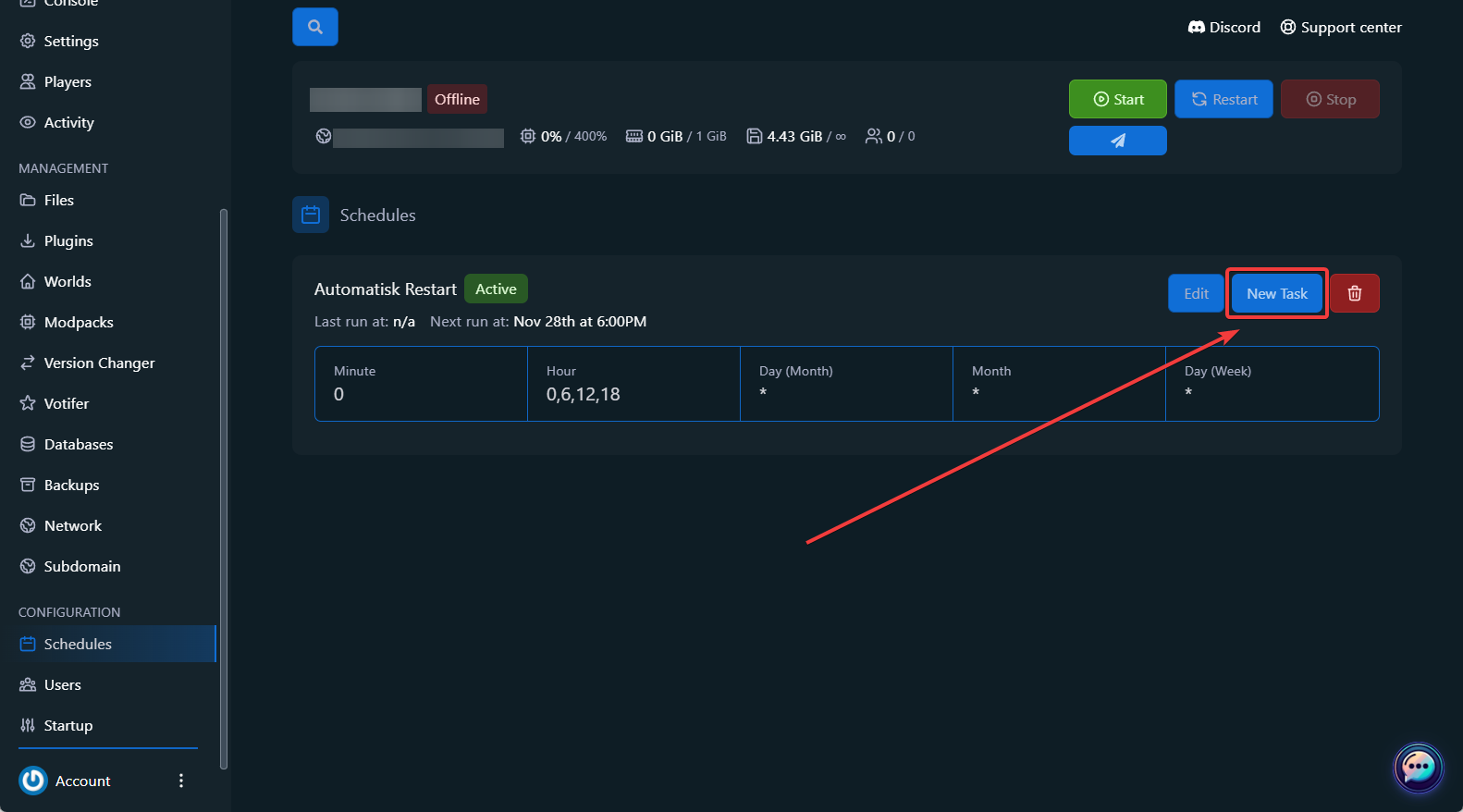
- Click "New Task" under your schedule.
- Send Power Action: Restart, start, or stop the server.
- Send Command: Execute a server command, e.g. say The server will restart in 5 minutes.
- Create Backup: Create a backup of the server’s files.
- For commands: Enter the exact command in the Payload field.
- For backups: Add files to exclude in Ignored Files.
- Time Offset: Specify how many seconds the task should wait after the previous task.
- Click "Create Task" to save the task.
- Schedule Examples
- Schedule Name: Daily Backup
- Minute: 0
- Hour: 2
- Day of Month, Month, Day of Week: *
- Task: Create a backup using default settings.
- Schedule Name: Restart every 6 hours
- Minute: 0
- Hour: 0,6,12,18
- Day of Month, Month, Day of Week: *
- Task 1: Send a message to players (say The server will restart in 1 minute).
- Task 2: Restart the server after a 60-second offset.
- Schedule Name: Maintenance
- Minute: 0
- Hour: 3
- Day of Week: 0 (Sunday)
- Task: Stop the server and create a backup.
Still need help?
Chat with us live or open a support ticket and we’ll get back to you as soon as possible.
Contact usHow to Create Schedules for Your Server
With PineRiver’s game panel, you can easily automate tasks on your server using schedules. Follow this guide to configure schedules and tasks.
1. Navigate to Schedules
- Log in to the game panel.
- Select the server you want to configure a schedule for.
- Click "Schedules" in the menu on the left under "Configuration".
2. Create a New Schedule
- Click "Create Schedule".
- Fill in the following fields:
- Schedule Name: Give the schedule a recognizable name, e.g. “Automatic Restart”.
- Cron fields: Specify when the schedule should run.
- Minute: The minute of execution, e.g.
*/5for every 5 minutes. - Hour: The hours of execution, e.g.
0,6,12,18(at 00:00, 06:00, 12:00, and 18:00). - Day of Month, Month, Day of Week: Use
*to run every day/month/weekday.
- Minute: The minute of execution, e.g.
- Select the relevant settings:
- Only When Server is Online: Enable if the schedule should only run when the server is online.
- Schedule Enabled: Enable this option to activate the schedule.
3. Add Tasks
- Click "New Task" under your schedule.
- Select an action from the menu:
- Send Power Action: Restart, start, or stop the server.
- Send Command: Execute a server command, e.g.
say The server will restart in 5 minutes. - Create Backup: Create a backup of the server’s files.
- Fill in the task details:
- For commands: Enter the exact command in the Payload field.
- For backups: Add files to exclude in Ignored Files.
- Time Offset: Specify how many seconds the task should wait after the previous task.
- Click "Create Task" to save the task.
Schedule Examples
Example 1: Automatic Daily Backup
- Schedule Name: Daily Backup
- Cron settings:
- Minute:
0 - Hour:
2 - Day of Month, Month, Day of Week:
*
- Minute:
- Task: Create a backup using default settings.
Example 2: Scheduled Server Restart
- Schedule Name: Restart every 6 hours
- Cron settings:
- Minute:
0 - Hour:
0,6,12,18 - Day of Month, Month, Day of Week:
*
- Minute:
- Task 1: Send a message to players (
say The server will restart in 1 minute). - Task 2: Restart the server after a 60-second offset.
Example 3: Weekly Maintenance
- Schedule Name: Maintenance
- Cron settings:
- Minute:
0 - Hour:
3 - Day of Week:
0(Sunday)
- Minute:
- Task: Stop the server and create a backup.
Tip: Looking for a reliable server to manage schedules? Check out our hosting solutions here and get started quickly!

Create Your Own ServerAre you ready to begin?
Start your server today and we'll give you a 25% discount on your first server. Use code NEW25 at checkout.

PineRiver is a modern hosting company delivering game servers, dedicated servers, web hosting and VPS with a focus on quality, stability and ease of use.

We are reviewed
awesome
PineRiver
39 onlineCopyright © 2026 PineRiver [DK41080841] | All rights reserved.